
MUSIC LAB
MUSIC LAB
Rediscover the joy of music within a whole new dimension.
Music Lab is a music player that brings the physicality of music back to life. Say goodbye to soulless touch screens and hello to a tangible user interface that lets you feel the music. Every feature, from playlists to song queues, is represented by real physical objects that you can touch and interact with.
Music plays a powerful role in our lives: sentient, harmonious and evocative of joy. With Music Lab, you'll rediscover the joy of music within a whole new dimension.
Course & Instructor
California College of the Arts
(Interaction Design)
TUI and Objects
Professor Graham Plumb
Skills
Design Collaboration & Team Work
(Credit: Colin Chan, Brayden Yuan)
Rapid Prototyping
User Interface Designing
Tools
Figma
Physical Build
Project Timeline
Sep 6, 2022 – Sep 16, 2022 (2 Weeks)
Problem
Music is something that connects with us on a deeper level, but in the world where music streaming is massively dominant, it gets increasingly difficult to feel that relationship with our favorite music through all the buzz and distractions.
How might we design a music player that brings the physicality of music to life through a tangible user interface, enhancing the user experience with every feature represented by real physical objects?
This project aims to provide an engaging and tactile experience for music lovers who seek a more natural, intuitive way to interact with their music players.
The Final Product
Music Lab’s final design featured four key tangible elements: The mixtube, music bin, play/pause scrubber, and control dial. These four were placed in an arrangement that surrounds the primary display interface, making sure that no physical interactions would obstruct the view.
Stage 1 | Activation
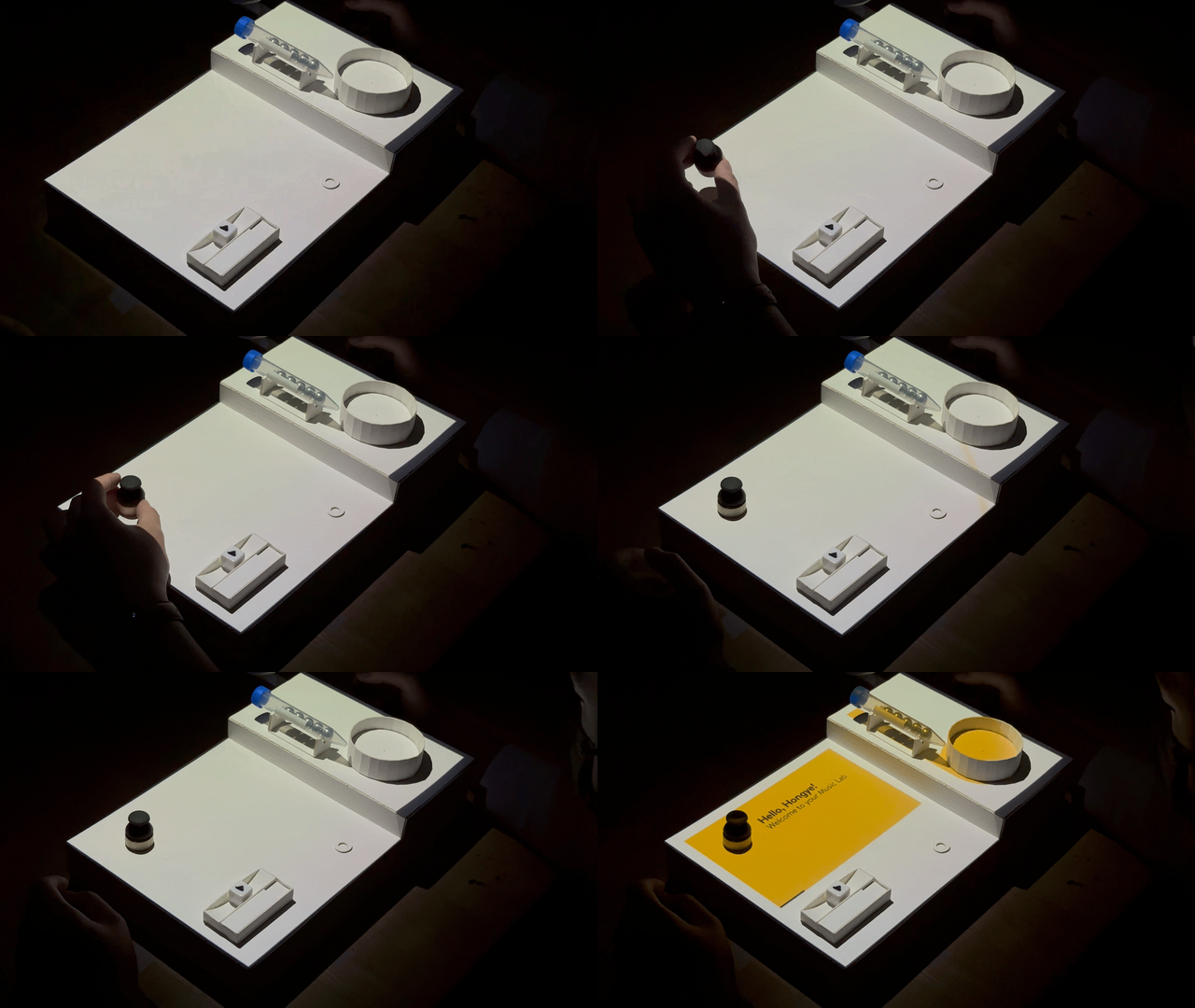
To activate Music Lab, the user first places their personalized control dial onto the top left corner of the main display. Projected animation validates success of the user’s authentication with visual feedback, followed by confirmation of the user’s profile name.
Stage 2 | Music Selection
The interface's first mode (sector) is the Music Library, primarily serving in the user’s music selection process.
The control dial affords a specific set of interactions that allows the user to navigate through the interface easily. Overlays around the control dial – through active and inactivate states – provide mapping to the possible actions that the user may initiate throughout the interaction.
Say the user wants to begin adding a few tracks to the queue. By rotating the control dial, the user can browse through the media tree to select the artist of their preference, followed by the album and, thereby, the track. Nudging the dial rightwards confirms the selection of the track to dispense.
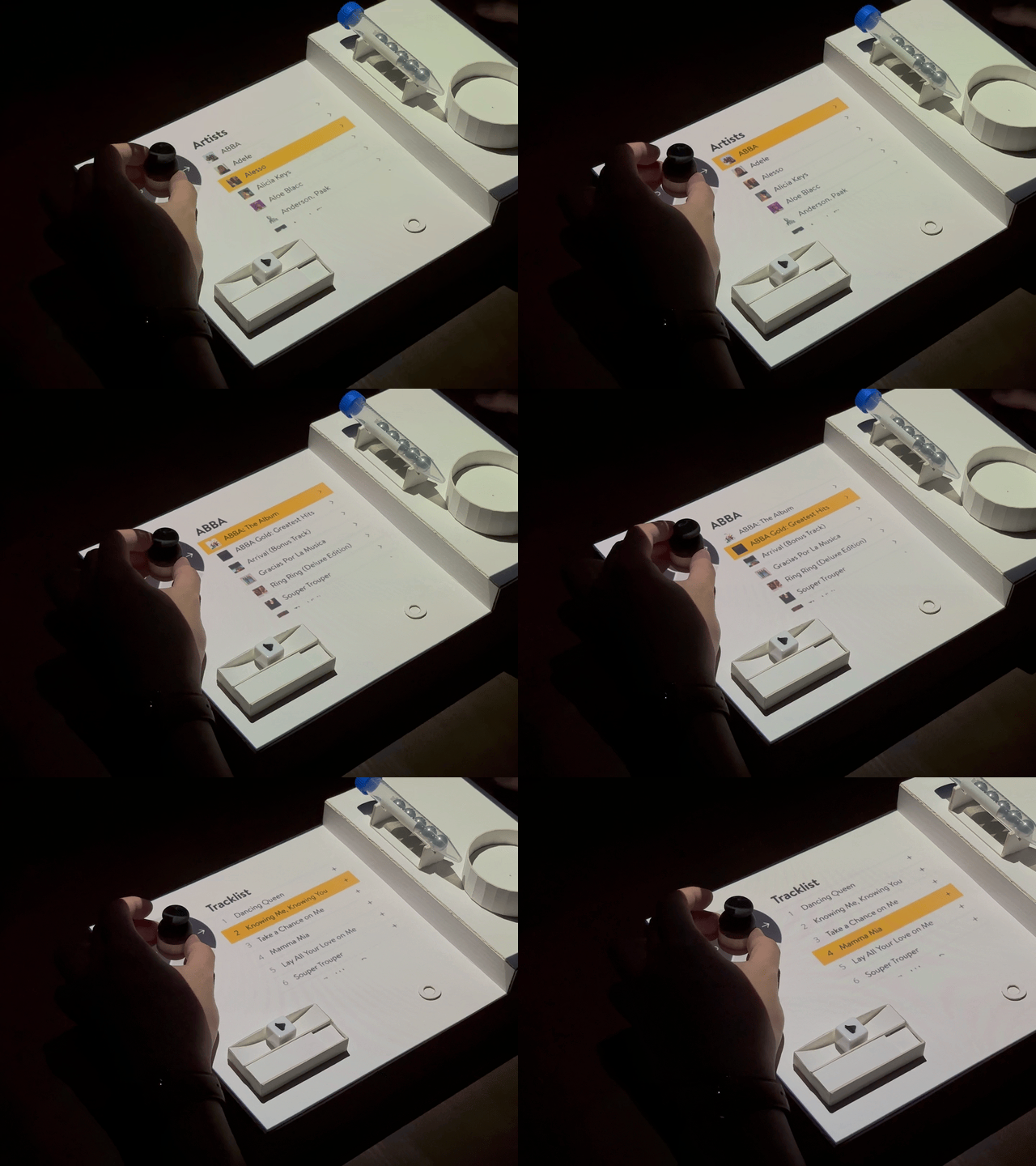
Rotating the control dial clockwise and anti-clockwise manages scrolling up and down the information tree, respectively.
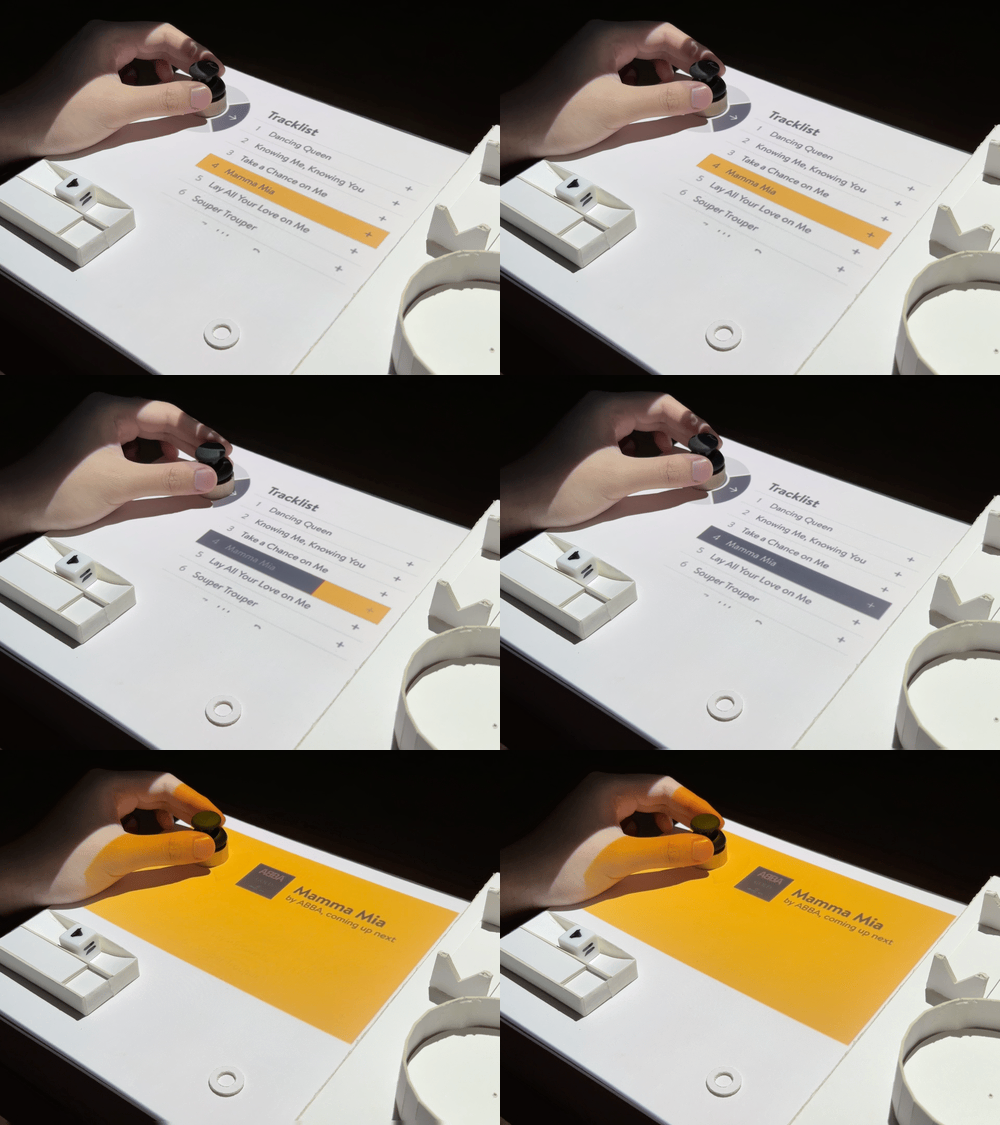
Shifting the control dial in either four main directions (up, down, left, right) activates the action prescribed in its corresponding overlay.
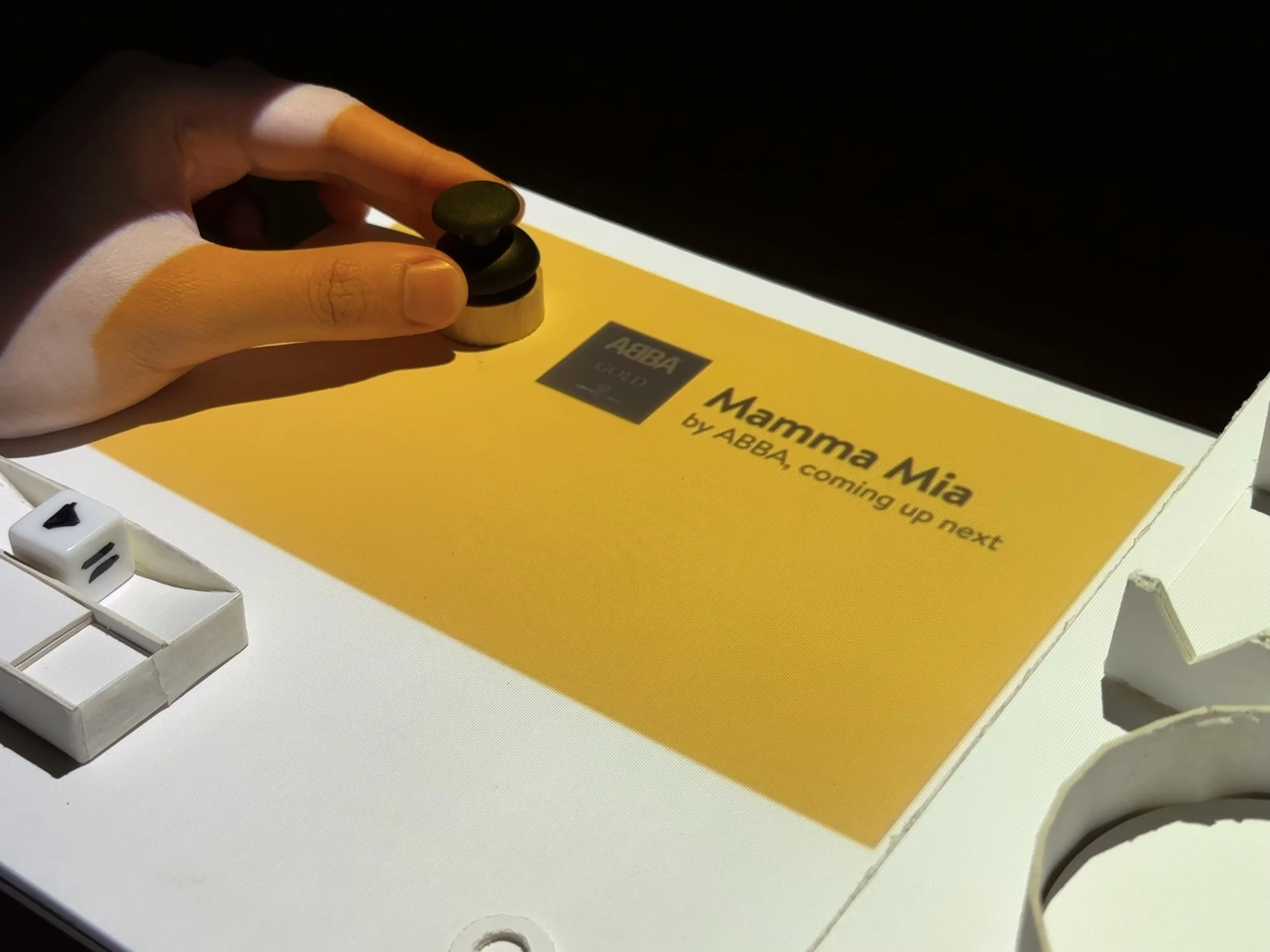
The full-screen notification provides prominent visual feedback about the music that is selected.
Upon selection, a colored notification modal encompasses the full scale of the display, confirming the track title and artist name.
A message then appear on the notification screen indicating the dispensing of the metal ball from the side of the device. A side indicator on the right frame edge follows the dispensing of the metal ball (token of a track), which is dispensed through a depressed rail down the slope, arriving at a slot at the bottom for the user to retrieve.
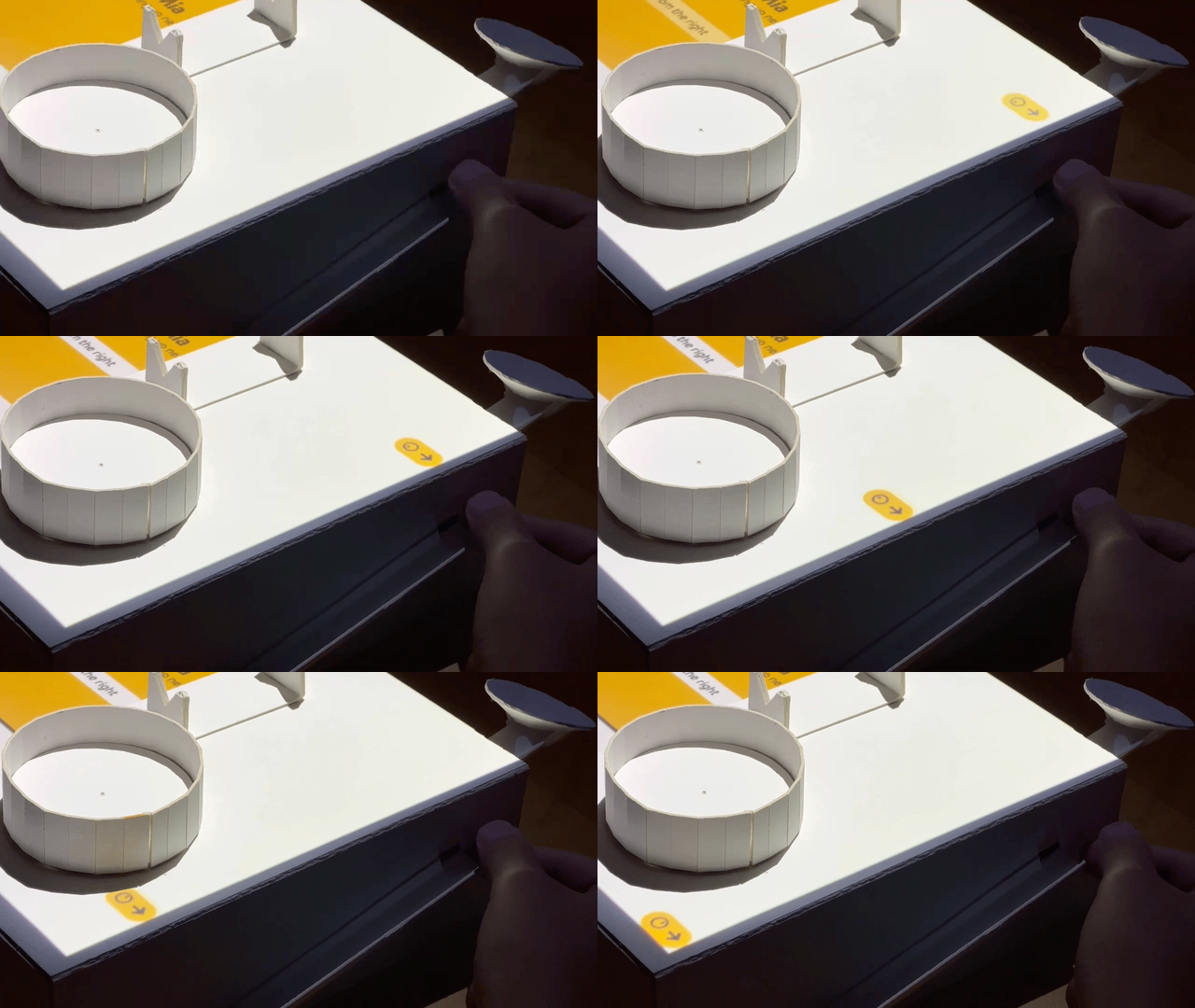
The side indicator – a rounded rectangle with an arrow and icon – precisely positions the dispensing location and follows the ball as it rolls down the side rail.
Stage 3 | Music Playback
Queuing Music
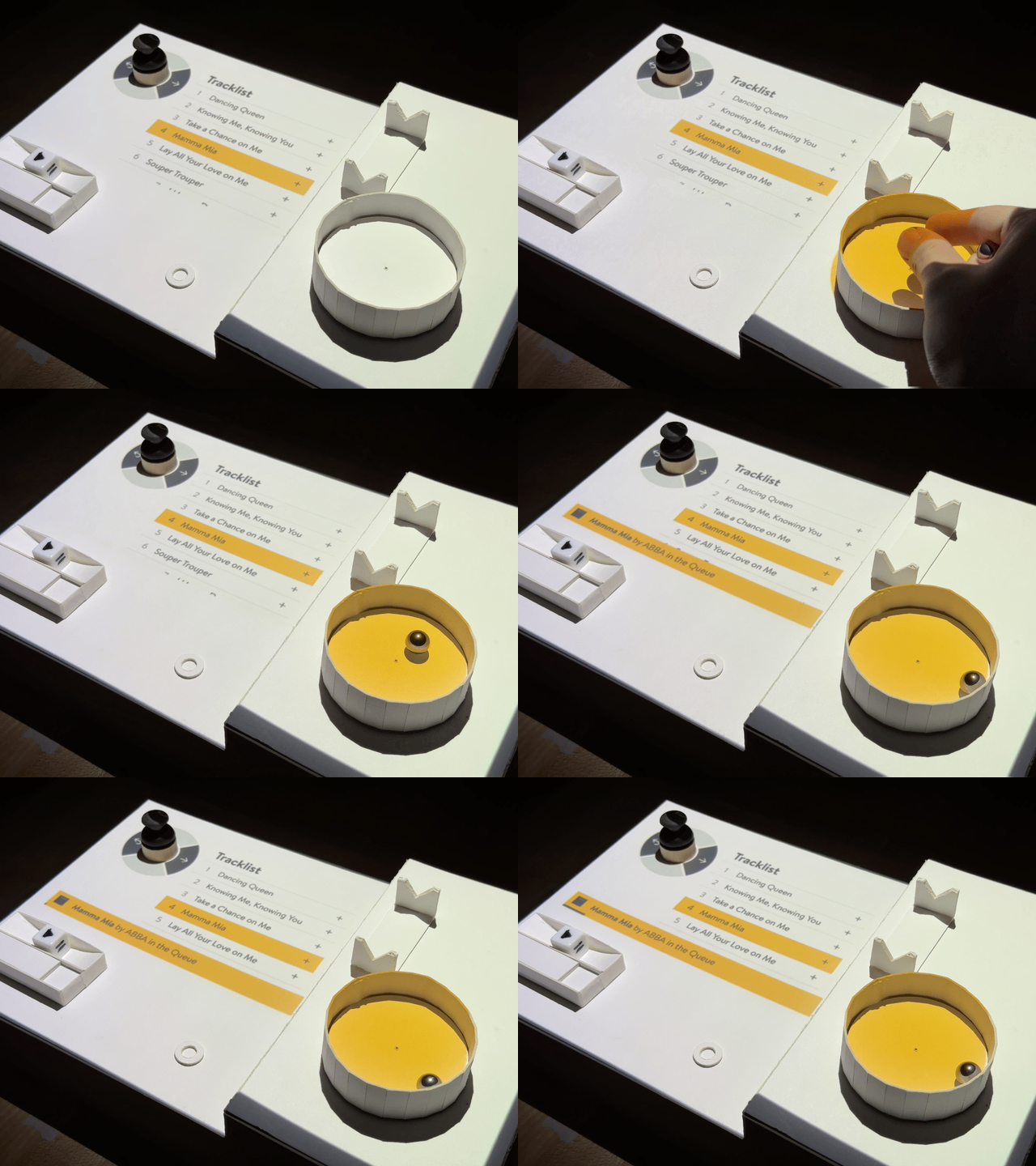
Adding a metal ball initiates activation of the music bin and notification of the added song’s info.
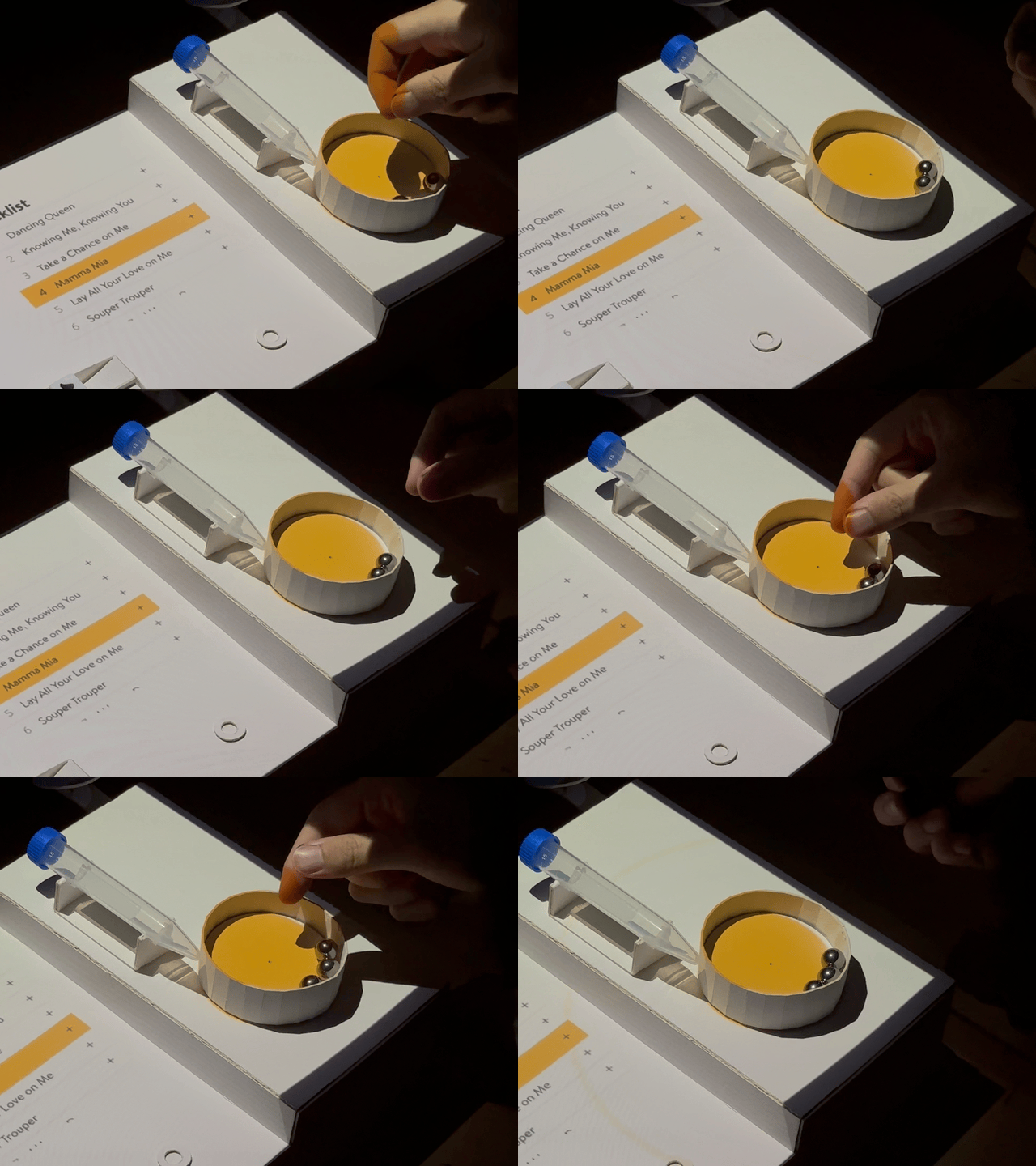
Subsequent songs added similarly prompt visual feedback to confirm detection.
The user can place the metal ball into the music bin to queue music for playback. A brief notification pops up from the bottom of the main display to highlight that the track has been successfully added to the queue. The user can rinse and repeat this process to sequence a queue of multiple tracks.
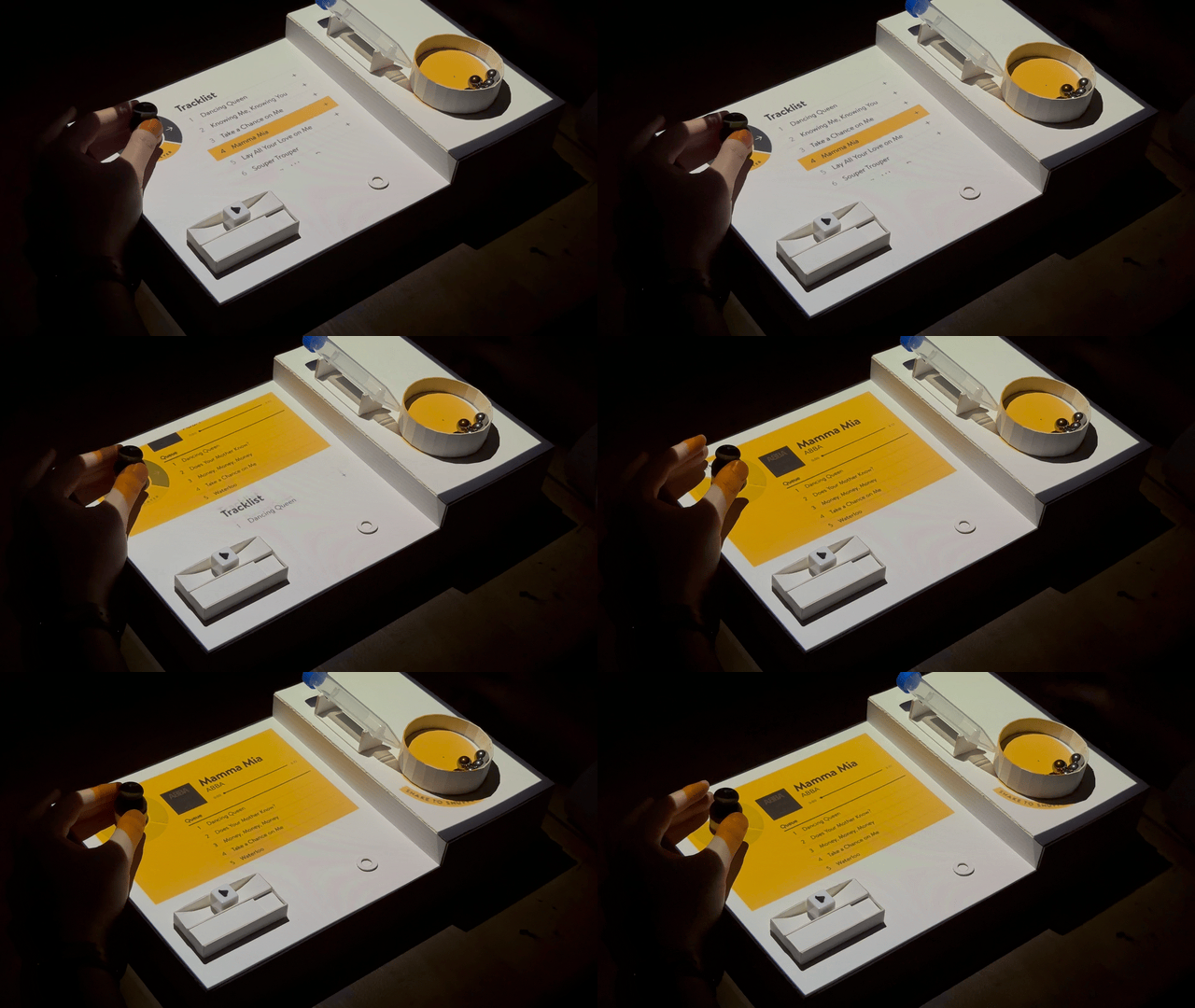
When the music bin is active, a downward overlay on the control dial allows users to switch from the Music Library to the Player interface.
Playing and Adjusting Music Playback
Music in the bin is designed to play automatically and projections atop the scrubber cube indicates that the device is now in play mode. The music plays in the order of the metal ball tokens that are placed in the queue.
The play row of the play/pause scrubber is designed as a smooth surface with a slight-downward U-shape curvature. When the user scrubs the cube to the right, the current track’s playback speed will increase; the further the cube is scrubbed to the edge, the faster the audio will play. Visual indicators on the album art similarly feedback on the user’s intended action.
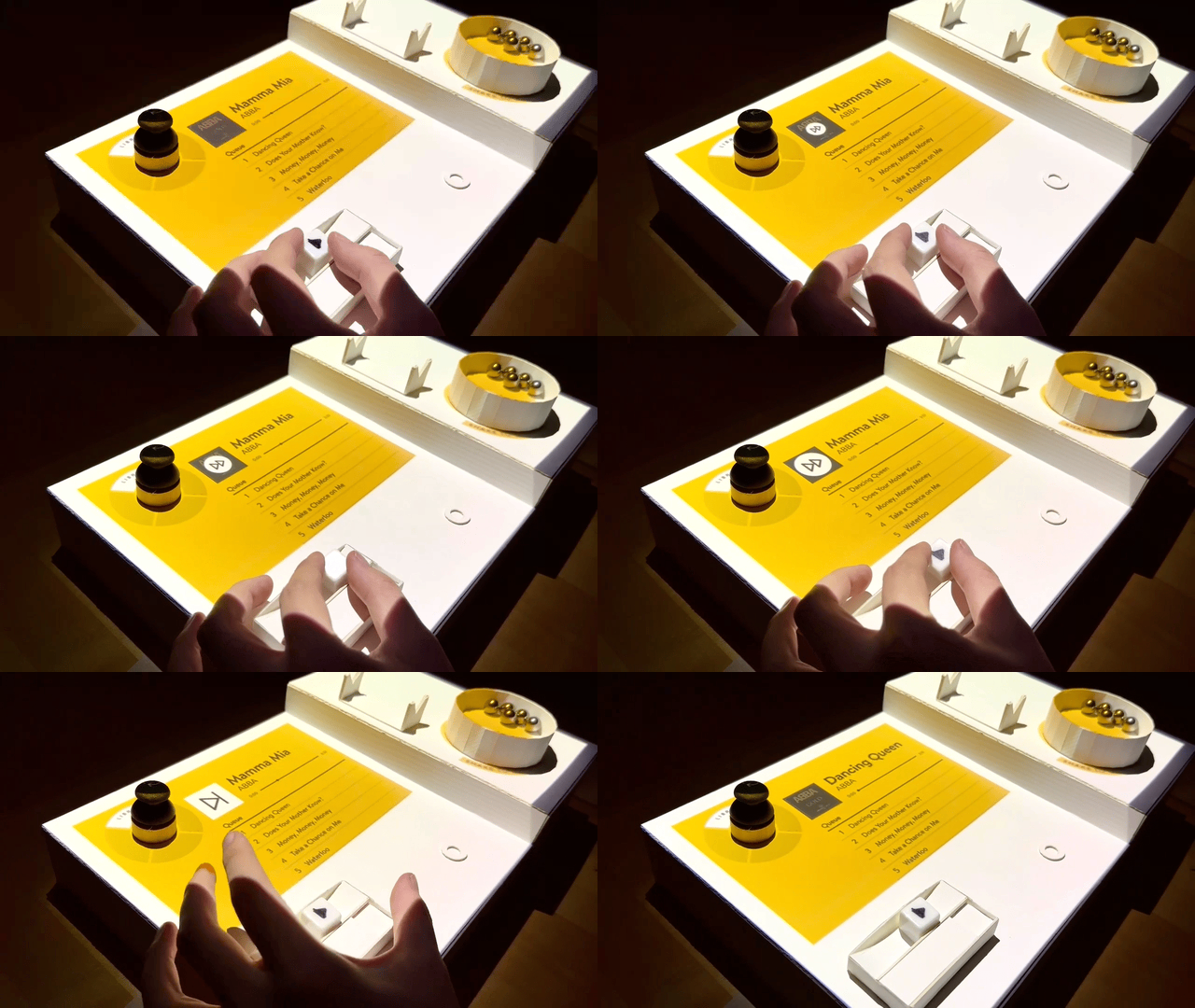
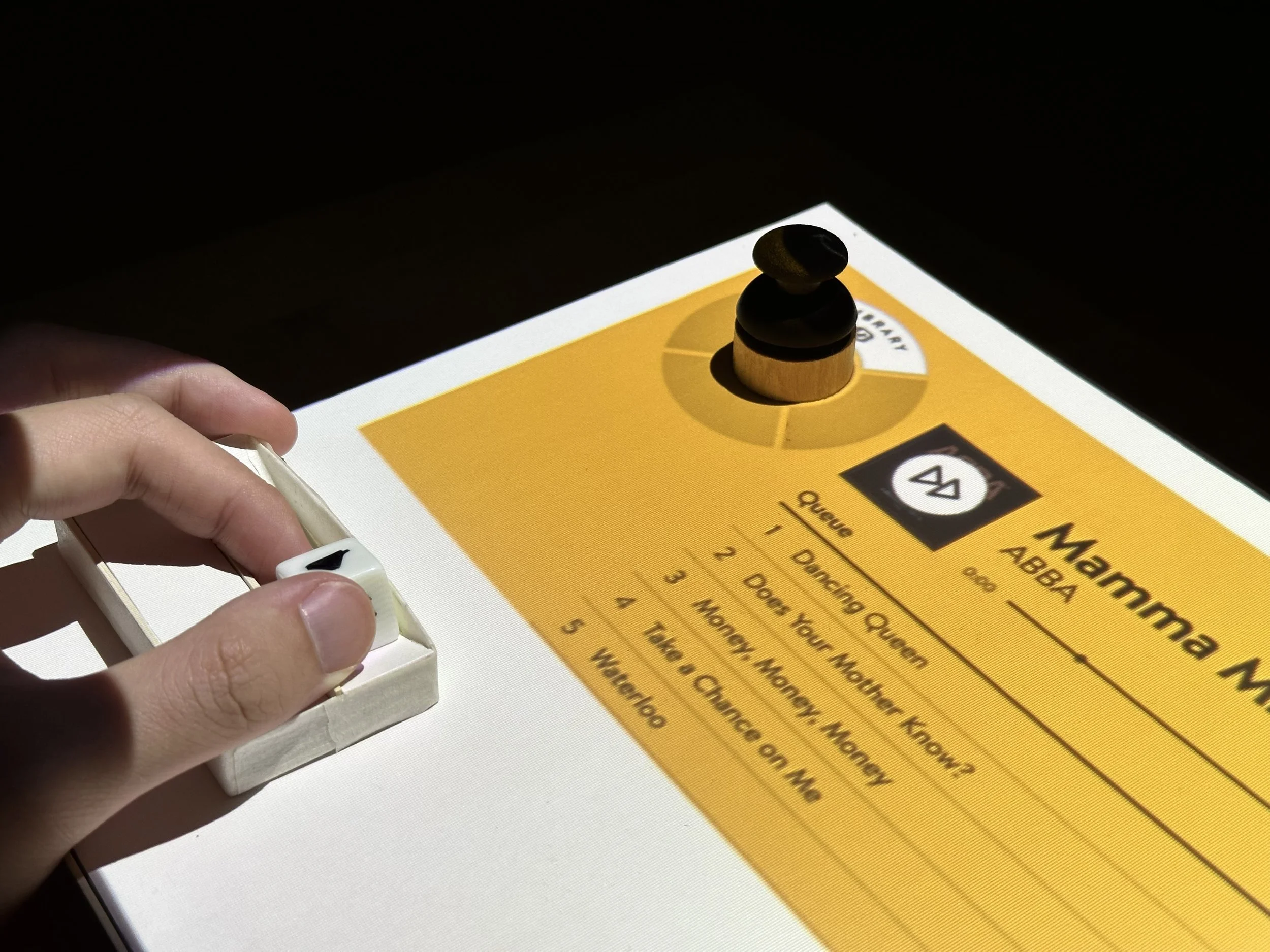
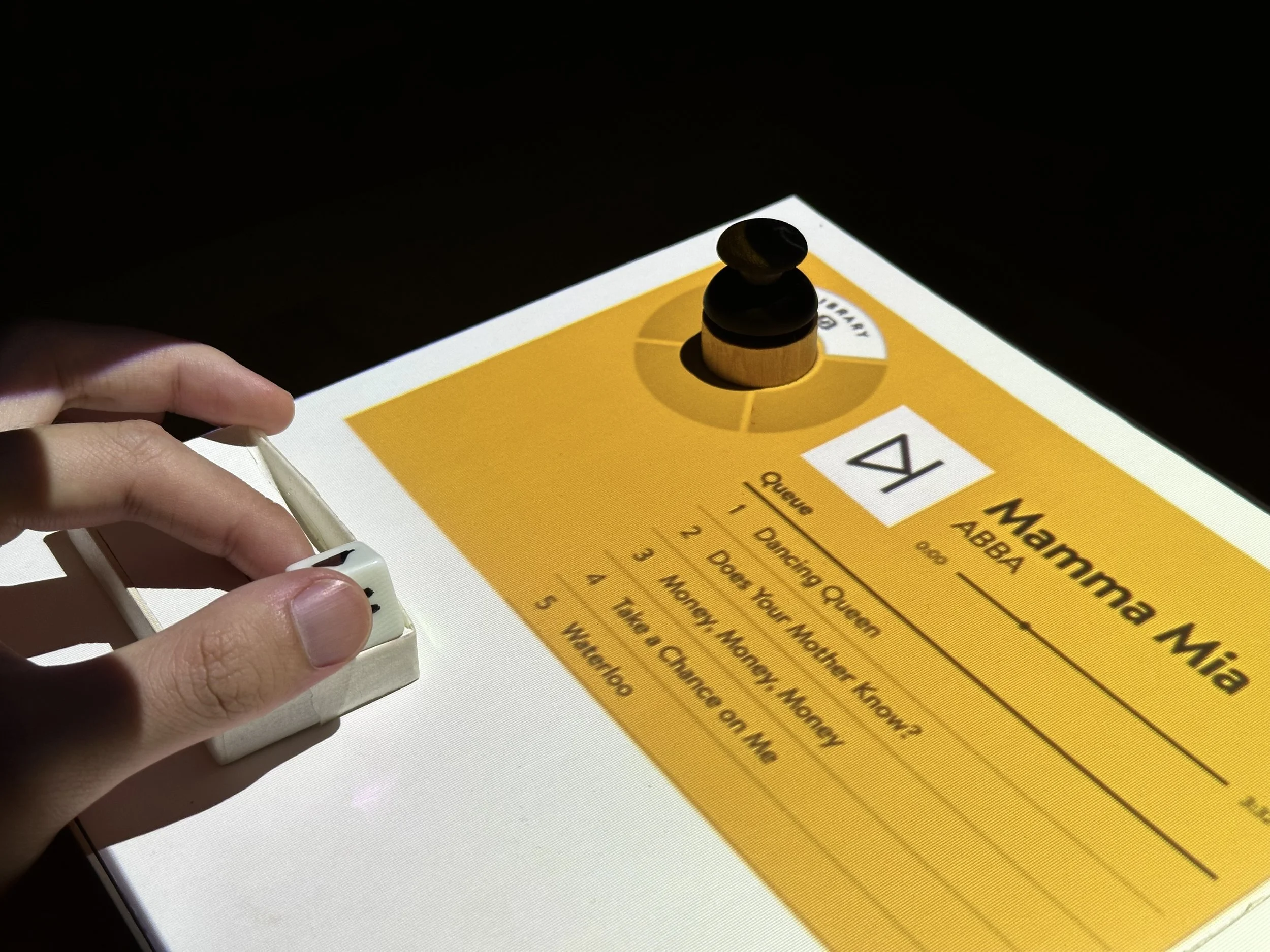
The U-shape curvature of the scrubber affords the ability to adjust music playback speed forwards and backwards. Gravity, upon release, causes the cube to return to its original position.
Distance from the midpoint determines the scale of change (1x, 2x, 3x etc.) — the extreme ends of the scrubber trigger music to the next or previous track in the queue.
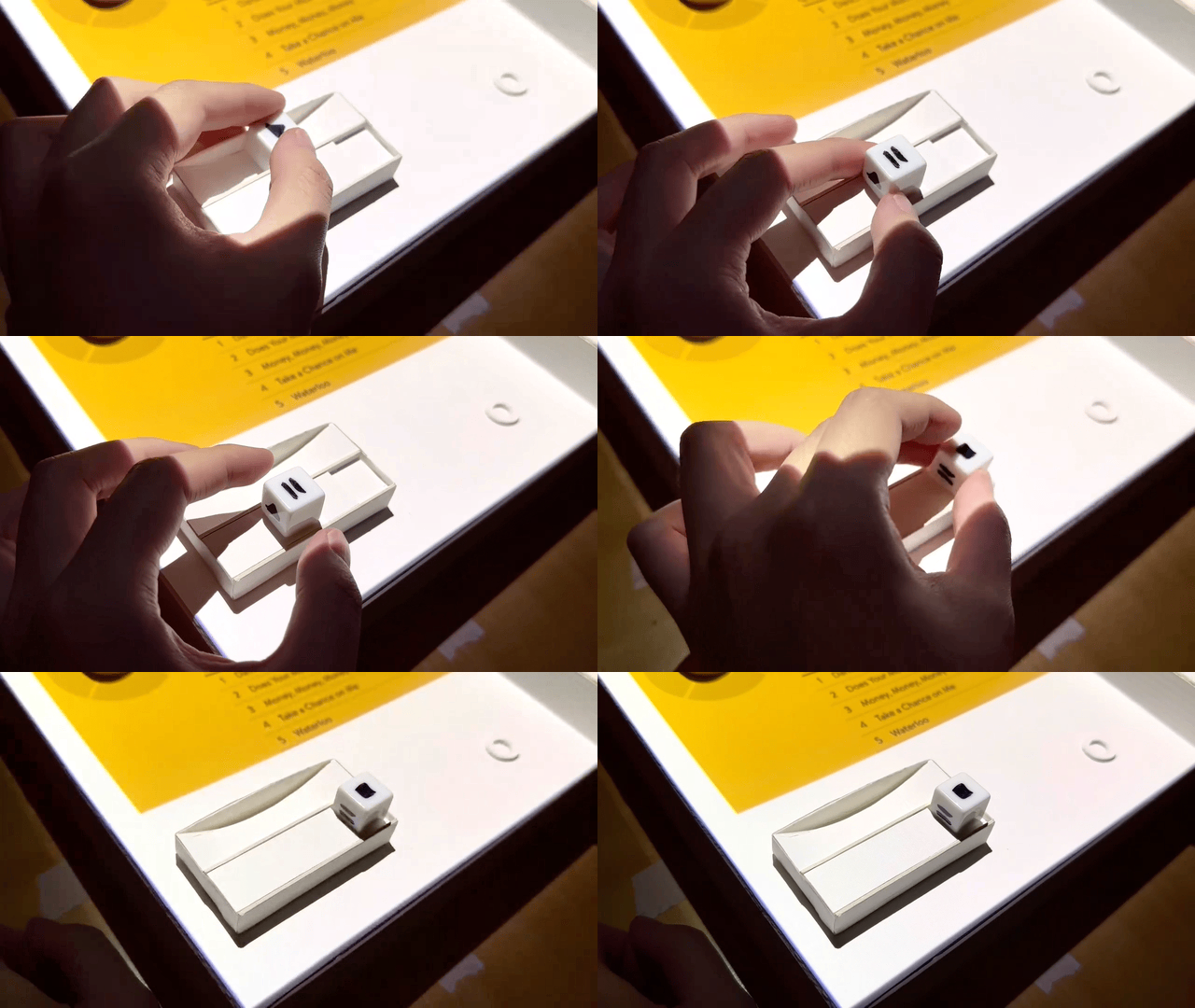
To pause music momentarily, the user can remove the play cube and rest it on the large surface at the bottom left of the scrubber. Likewise, to stop entirely, the user can place it in the indented area at the bottom right corner. Projections on the cube would update the player’s status and change accordingly.
Shuffling Music
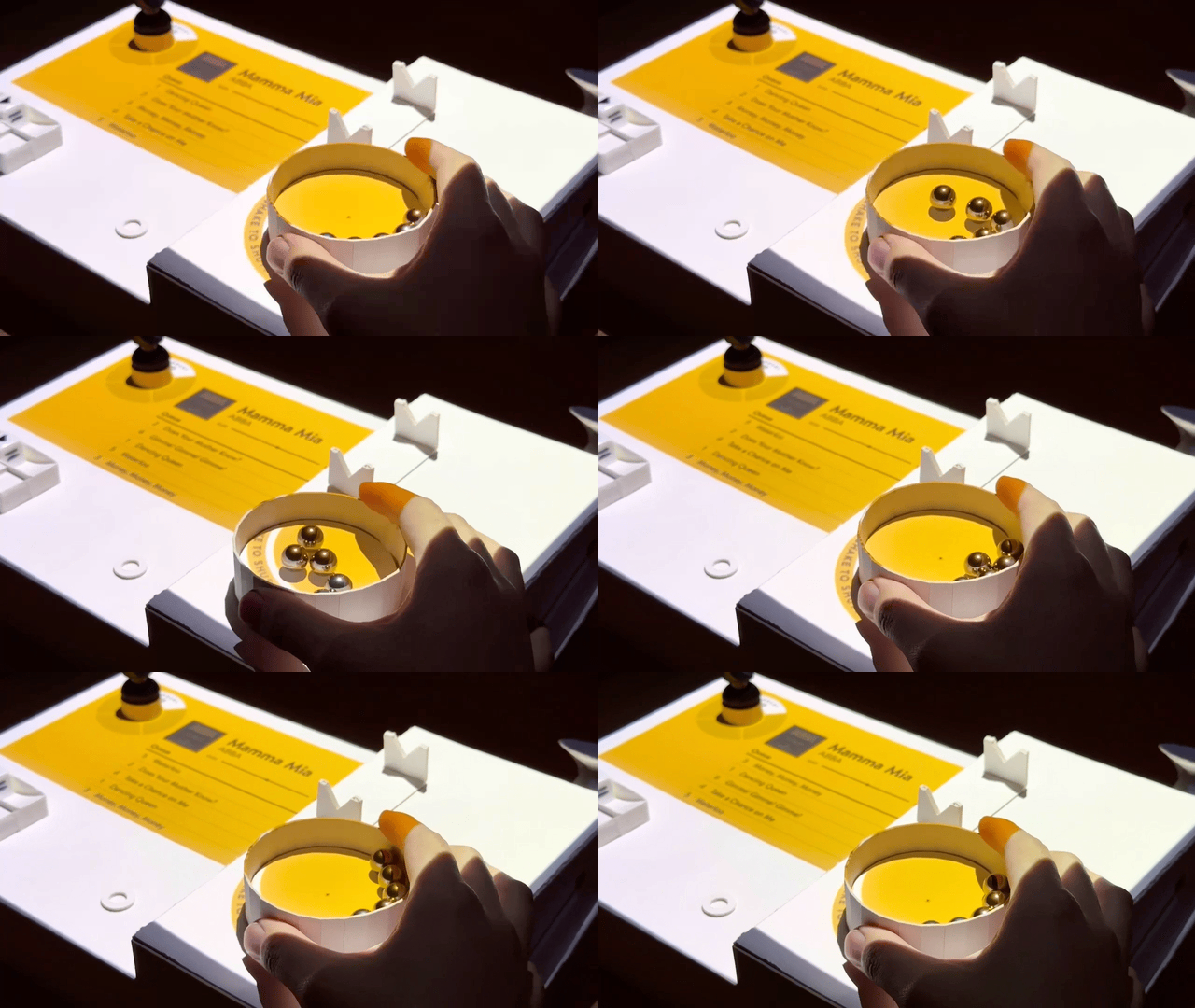
The “Shake to Shuffle” prompt appears in a pop animation to align with the affordance of shaking to shuffle.
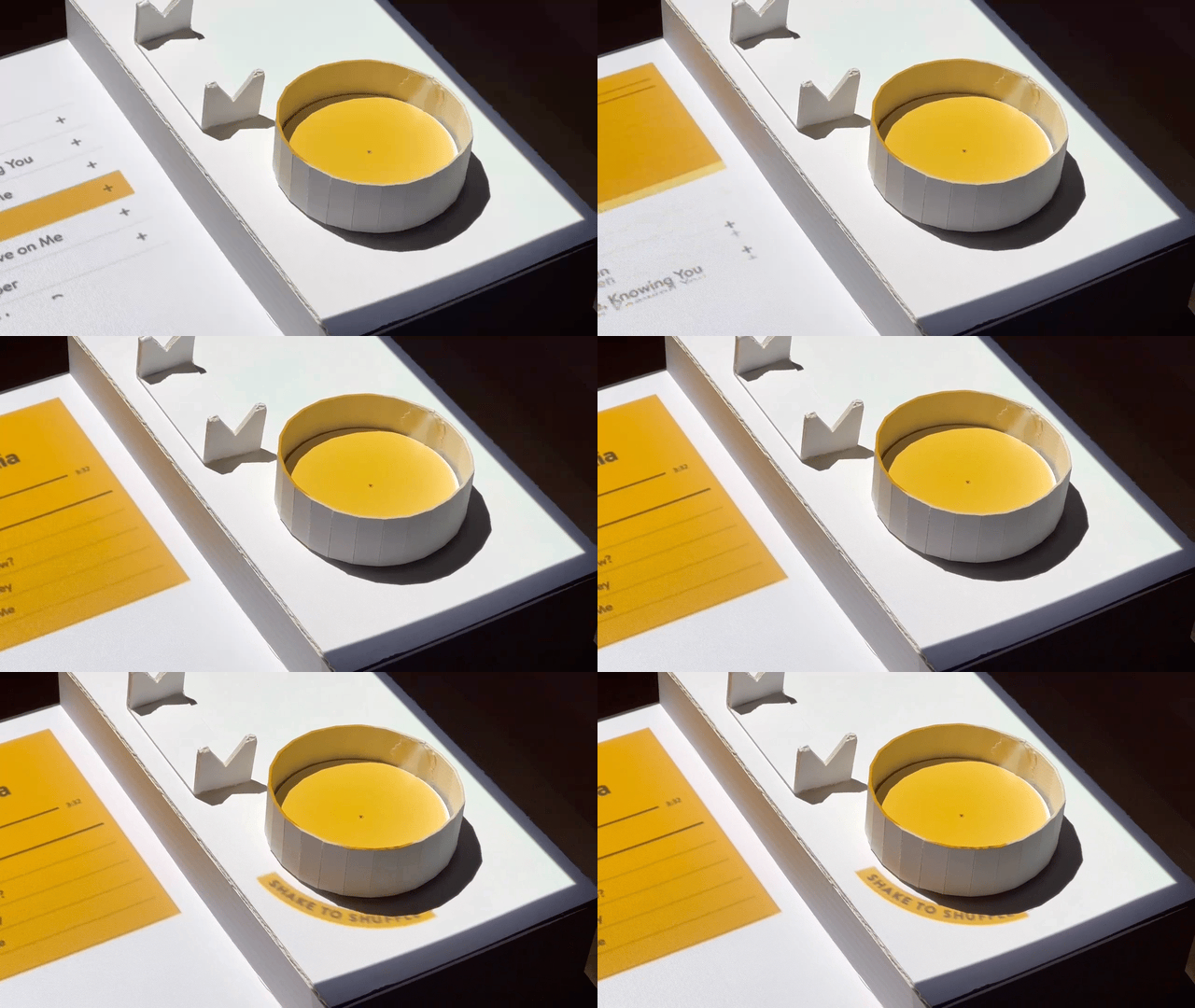
As the user shakes the bin, the music queue sequence re-orders and re-sequences based on the last action.
A projected animation is designed to pop next to the music bin whenever the user enters the Player mode. If the user doesn’t like the order of the tracks in the queue being played, they can physically shuffle the bin, so the track order literally shakes up.
Stage 4 | Playlist (Mixtube) Curation
Another core interaction the user can have with the device is curating a playlist or, based on our taxonomy, a mixtube.
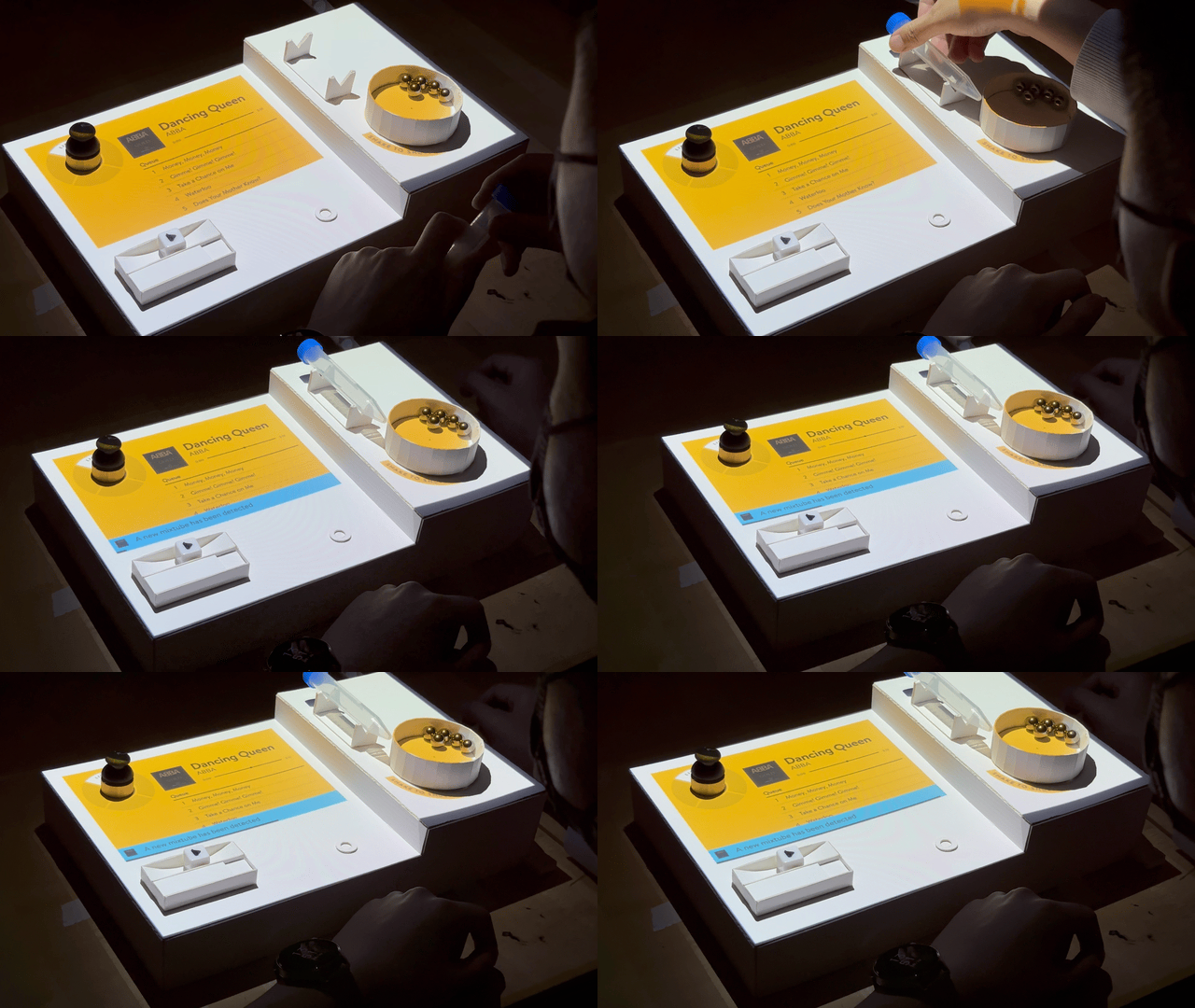
When the user places an open mixtube onto the mounting rack on the right side, a brief visual notification appears from the bottom to inform the user of its detection. The downward overlay on the control dial allows the user to switch to the Mixtube Manager.
At its total use, the control dial prompts are concurrently active, allowing the user to shift up and down using the control dial to jump between the interface modes.
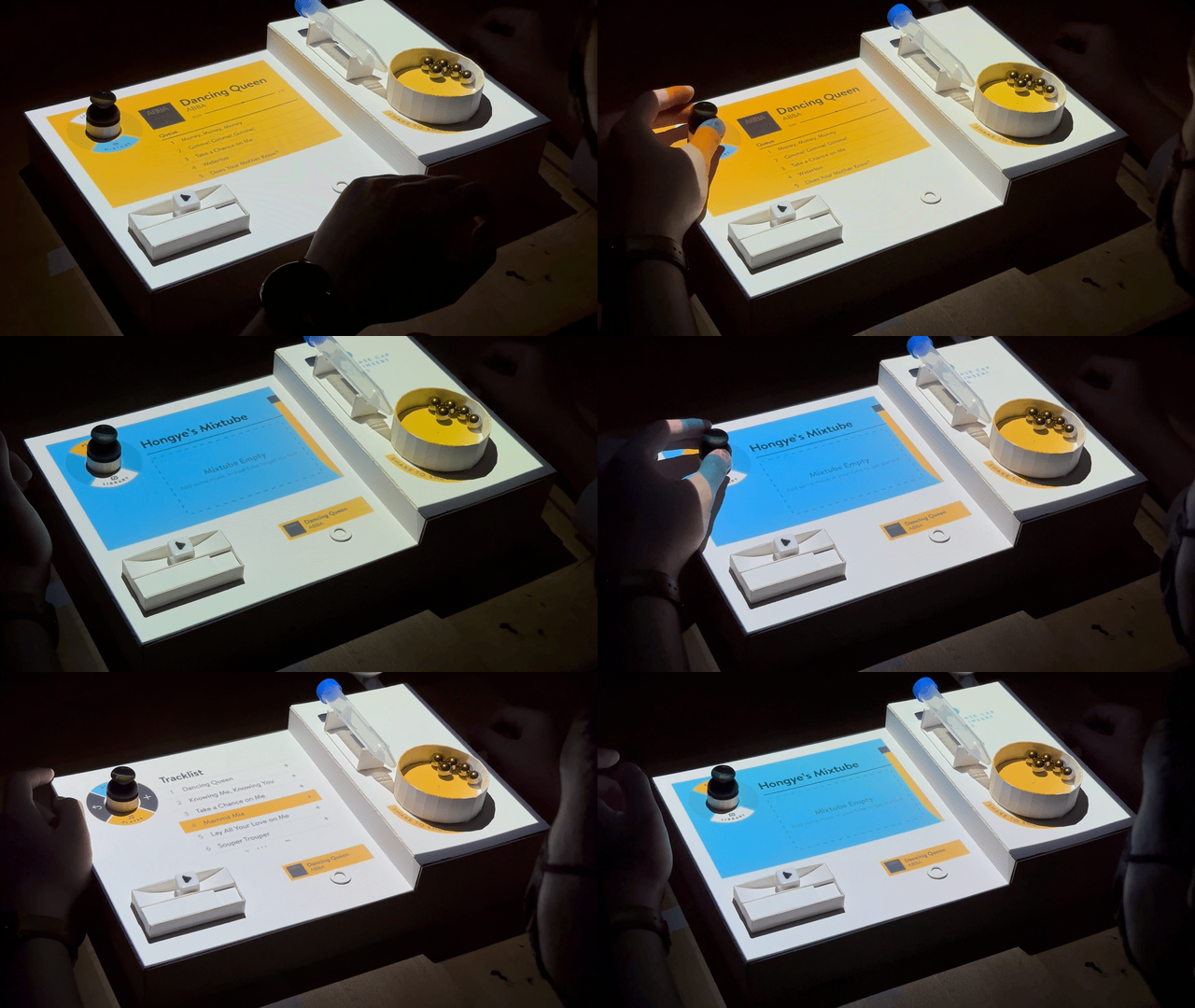
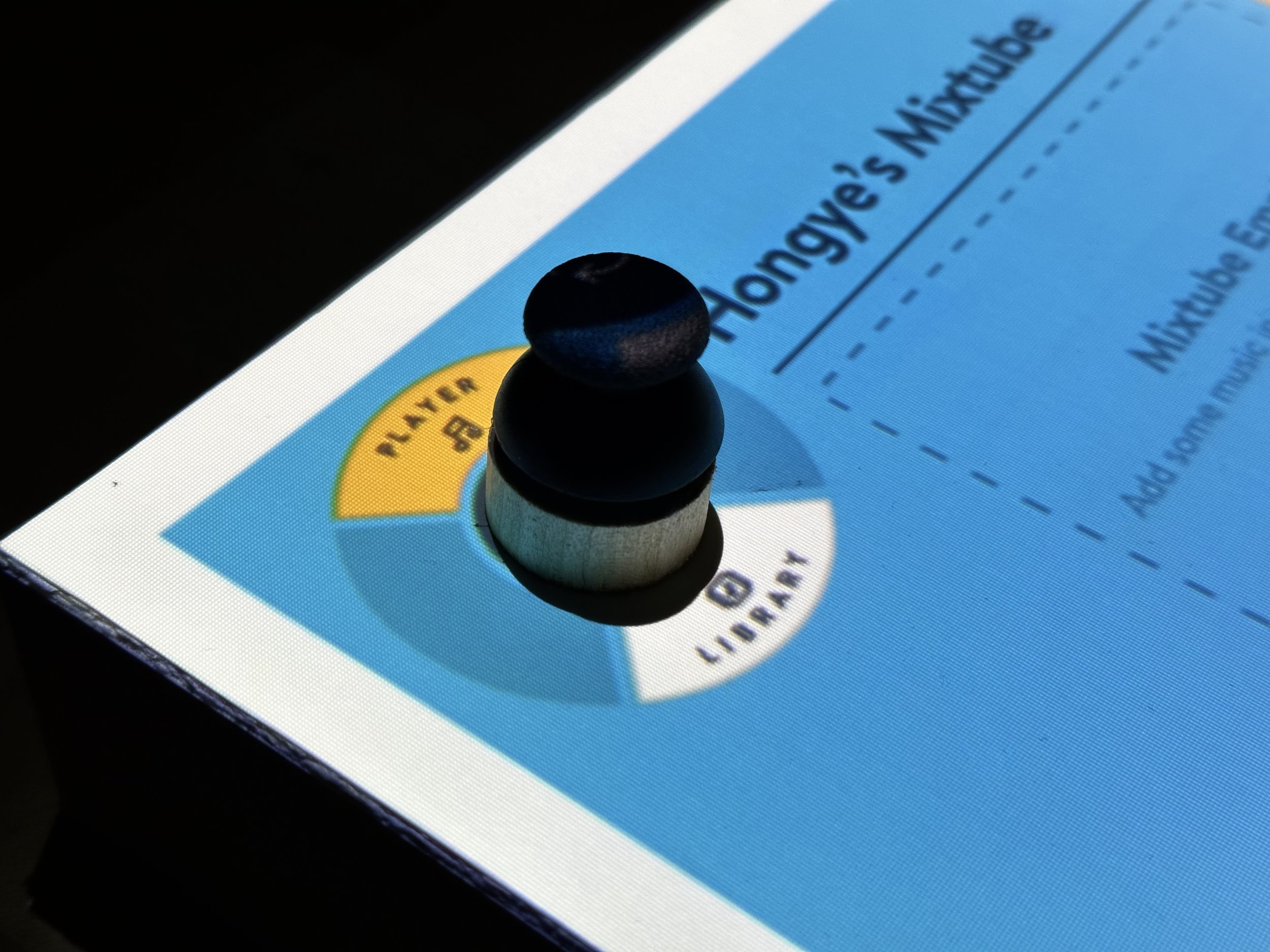
The control dial at its full active state with all three modes in use.
The assignment of music to tokens follows the same process as before (dispensing into individual metal ball tokens). But, instead of placing it into the bin, the user can insert each ball – one by one – into the mixtube.
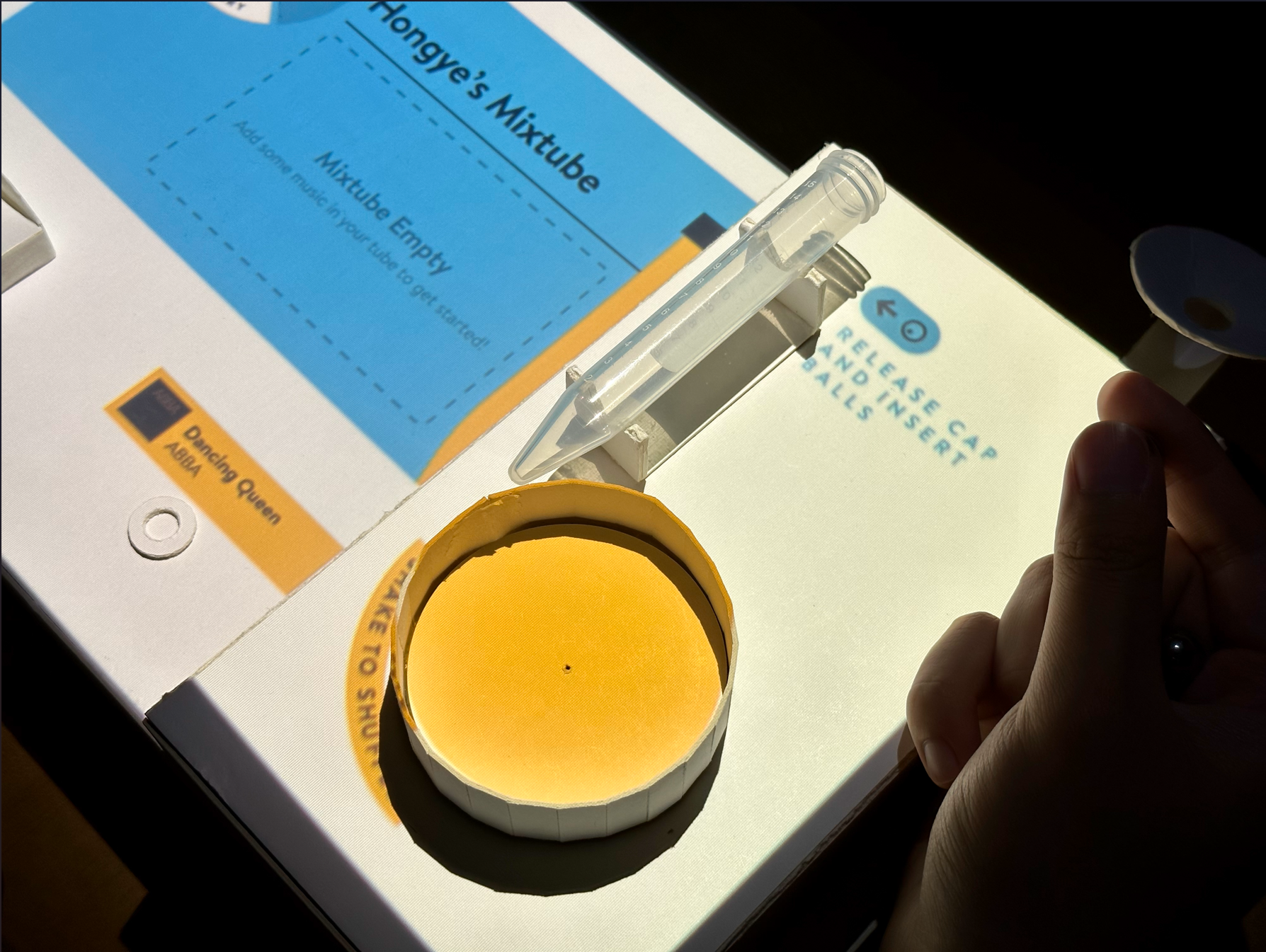
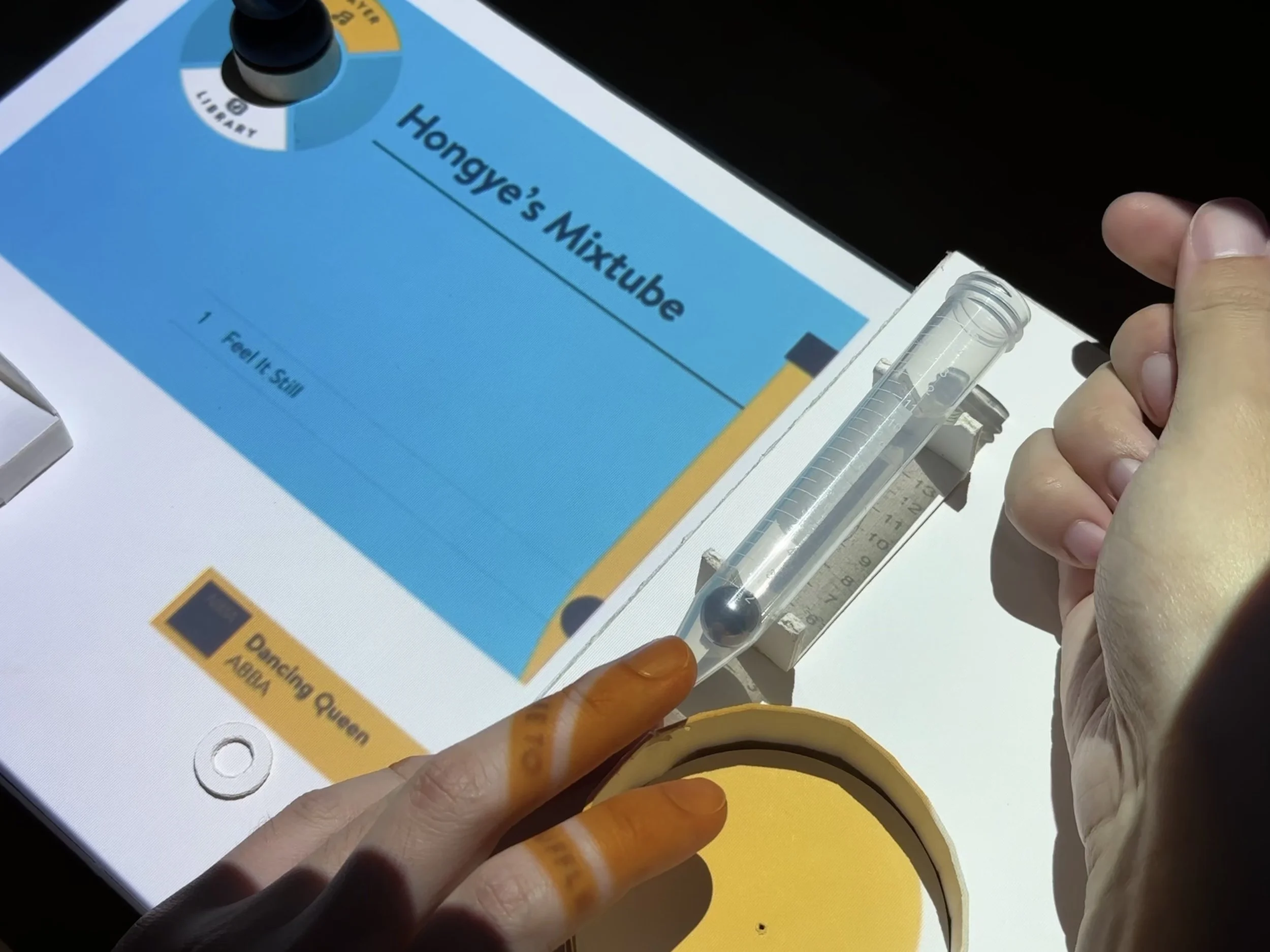
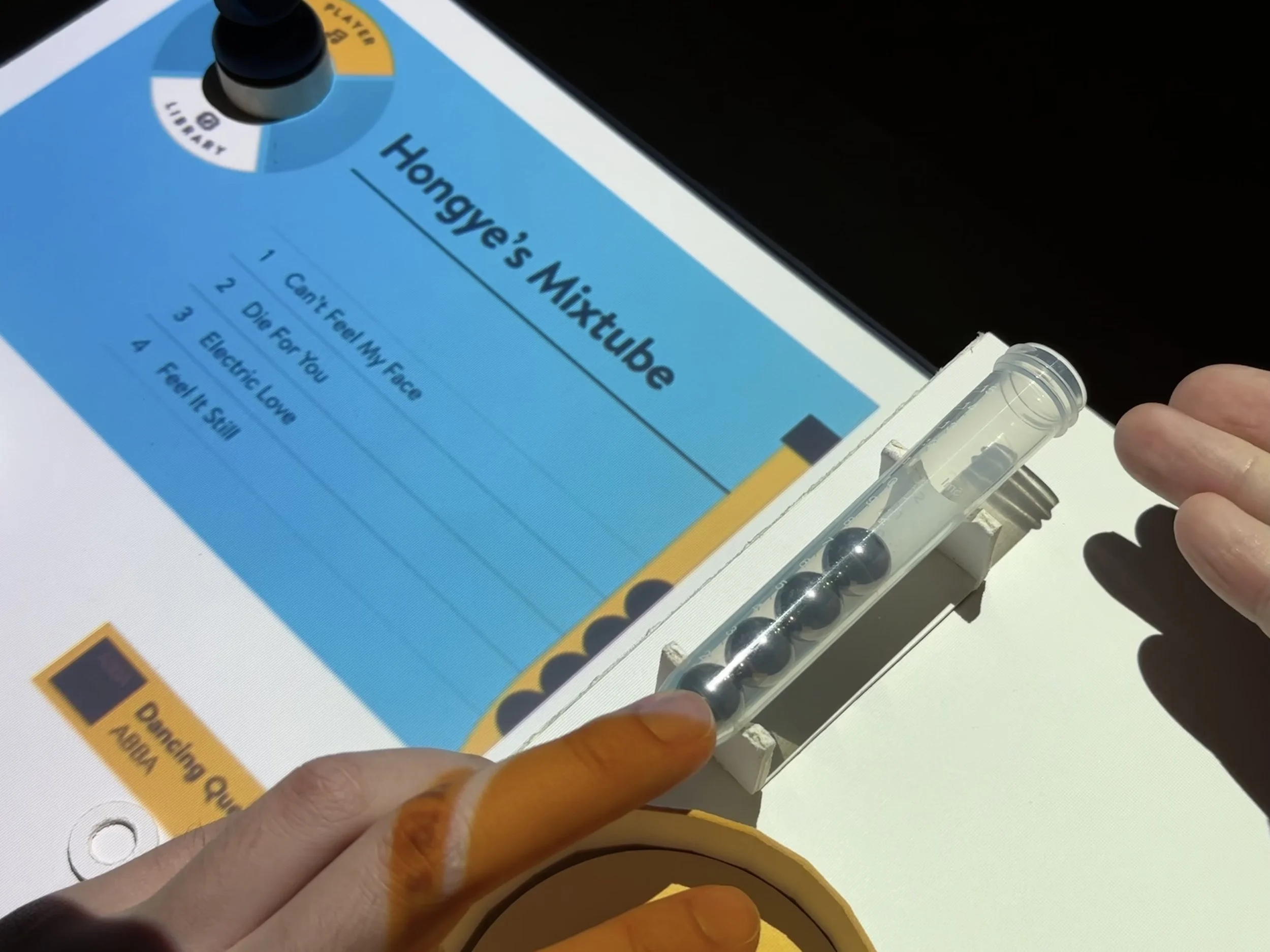
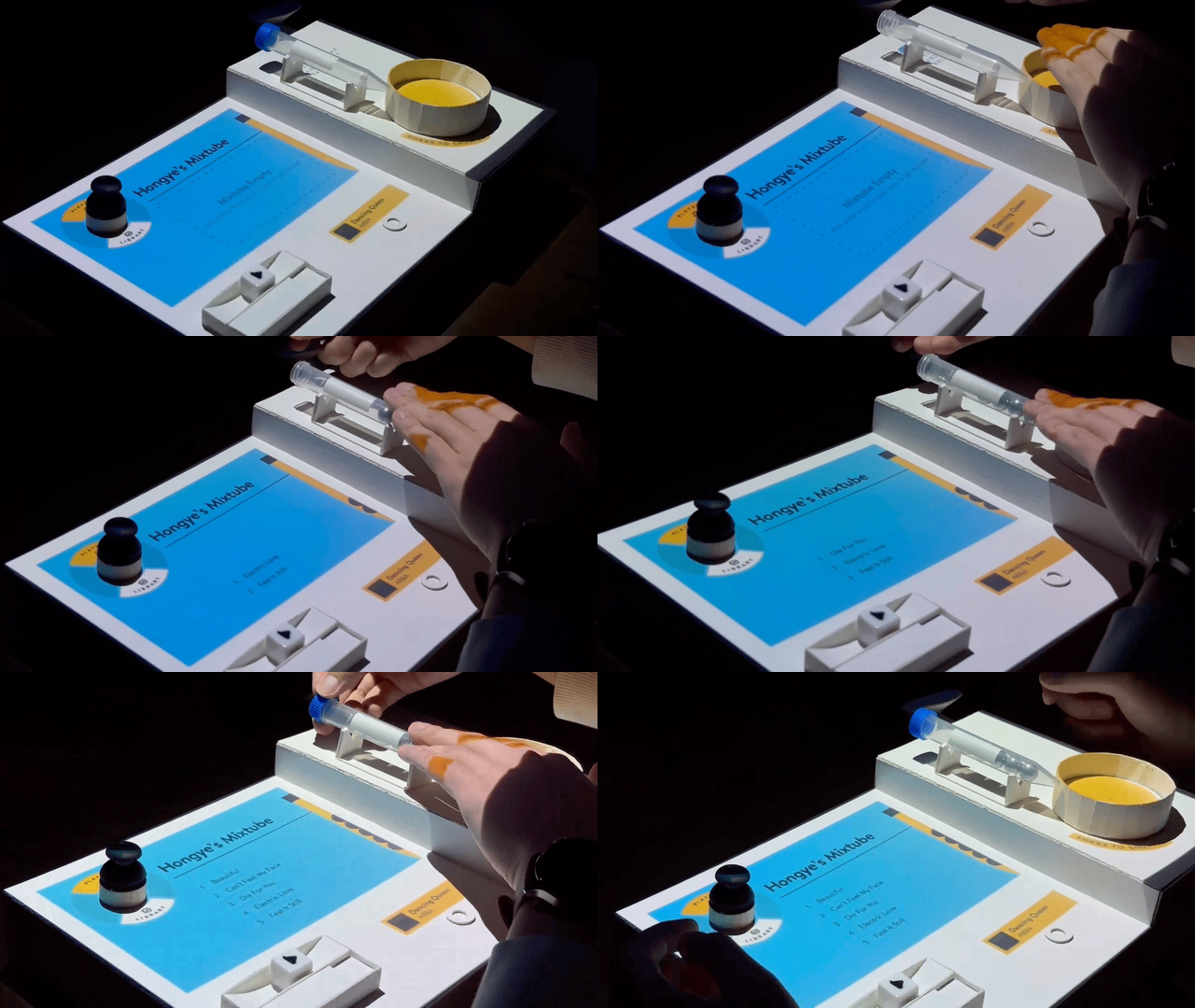
As each music track is inserted into the mixtube, the track information is displayed in stacking rows with conforming animations to feedback the user’s action.
When the user seals the cap of the mixtube, a curated playlist that would play the tracks from bottom to top is now formed.
The mixtube can be stored separately from the device itself, enabling the user to engage in many creative ways. Multiple mixtubes could be saved and played at any time, similar to an actual album. They can also be shared among friends and families, giving back the sensation of sharing music in physical form to the users.
Identify Media Quickly with the Secondary Display
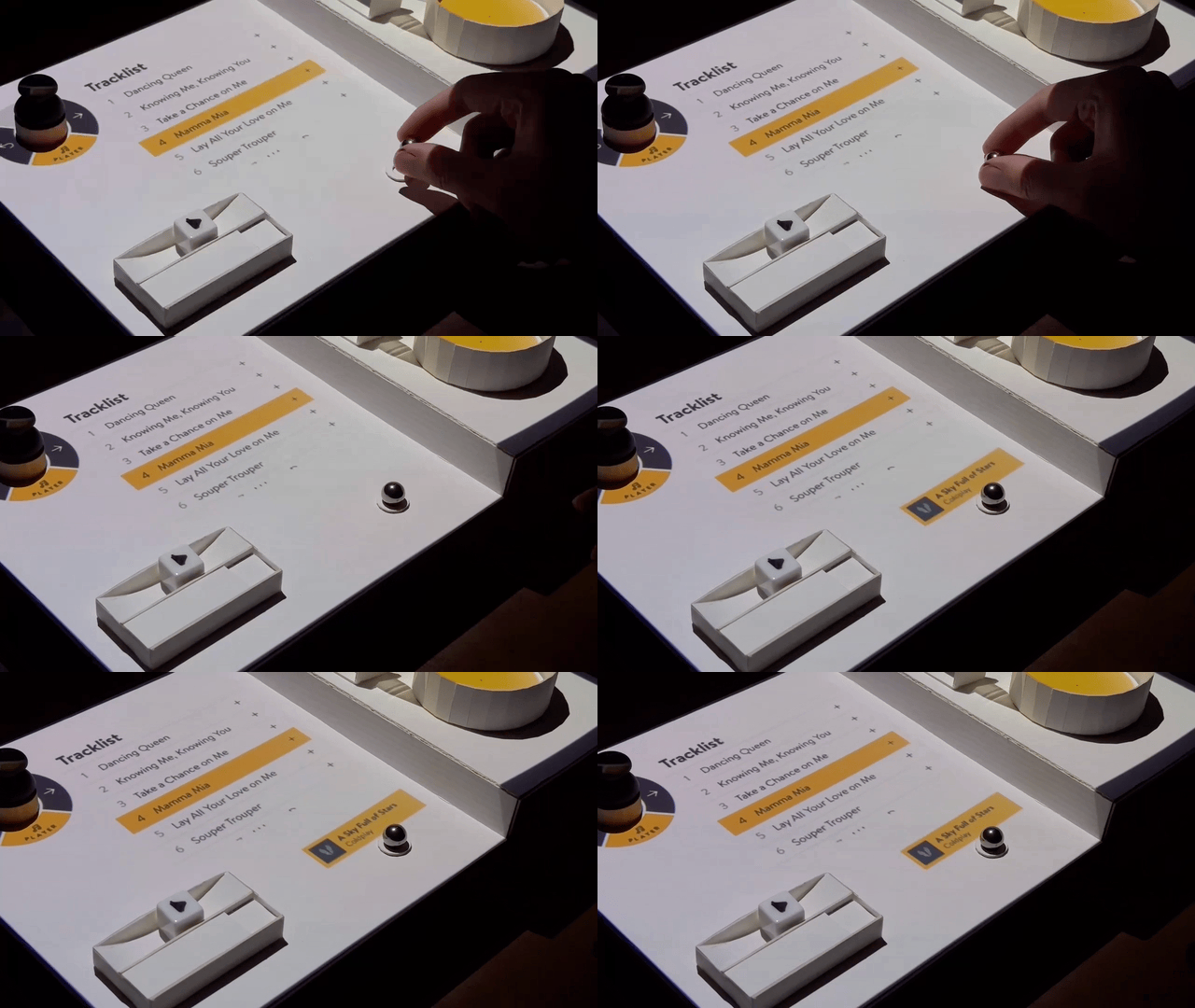
We recognized that it could be challenging for the user to identify which music token belong to which track and vice-versa with mixtubes, particularly when Music Lab is scaled to widespread, active use.
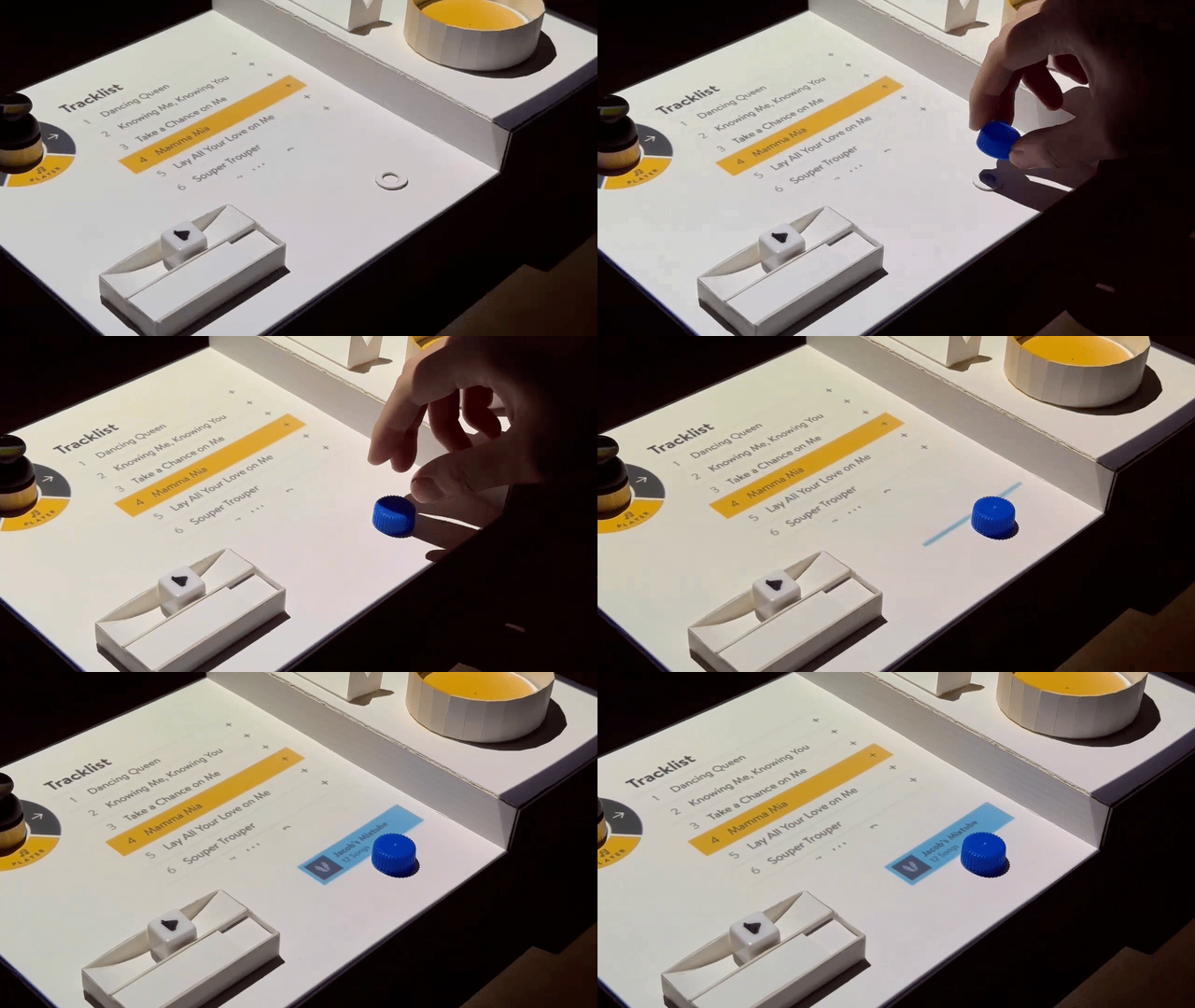
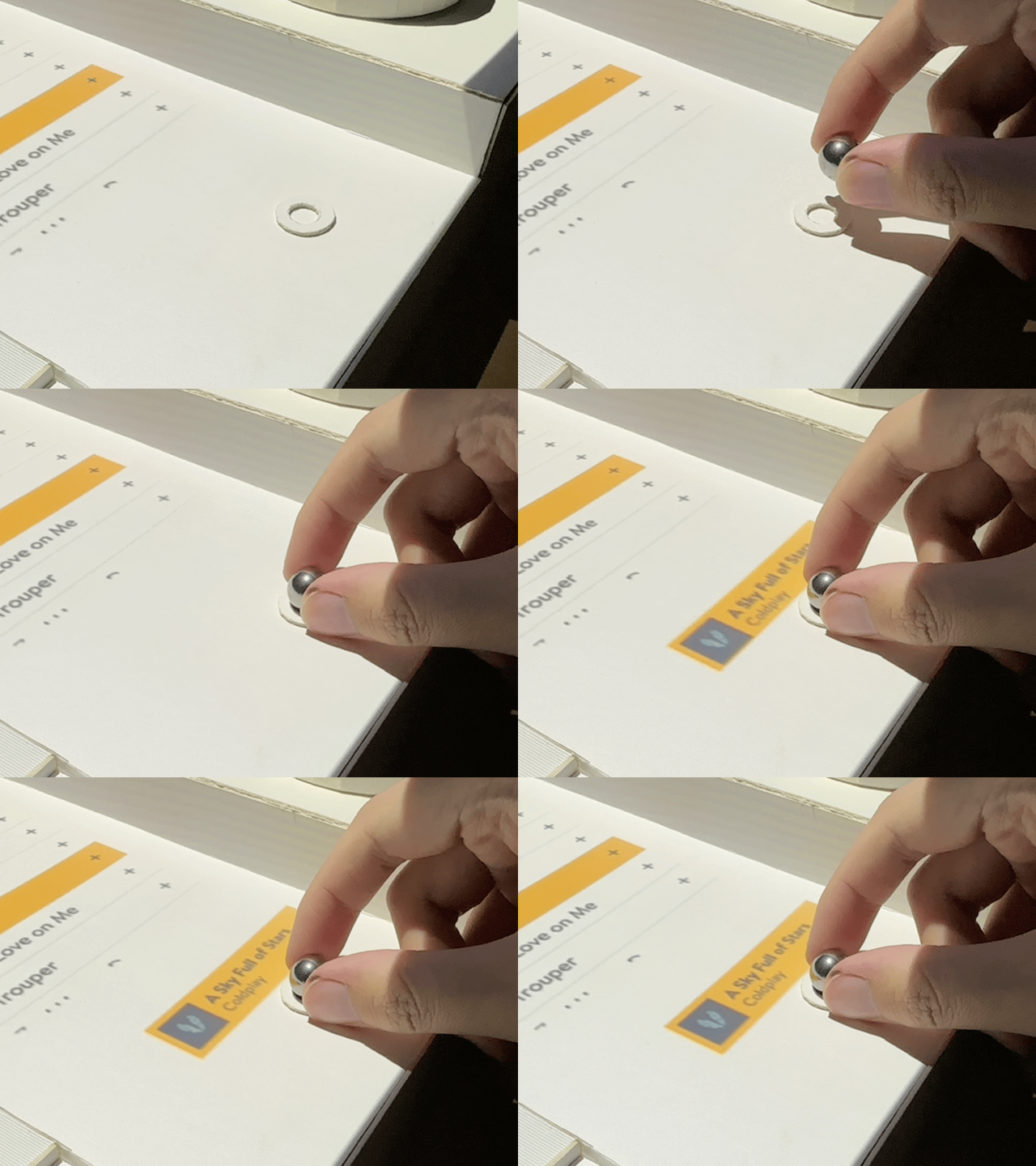
It was this thought that inspired the building of the secondary display. By placing a metal ball or mixtube on the ring below the display, a popup notification appears with the information uniquely assigned to the token.
Track information such as Album Art, Track Name and Artist Name appears when the ball is placed on the ring.
Mixtube information such as Album Art (of the first track), Name and Number of Songs appears when the mixtube cap is placed on the ring.
Returning Music Tokens to Machine
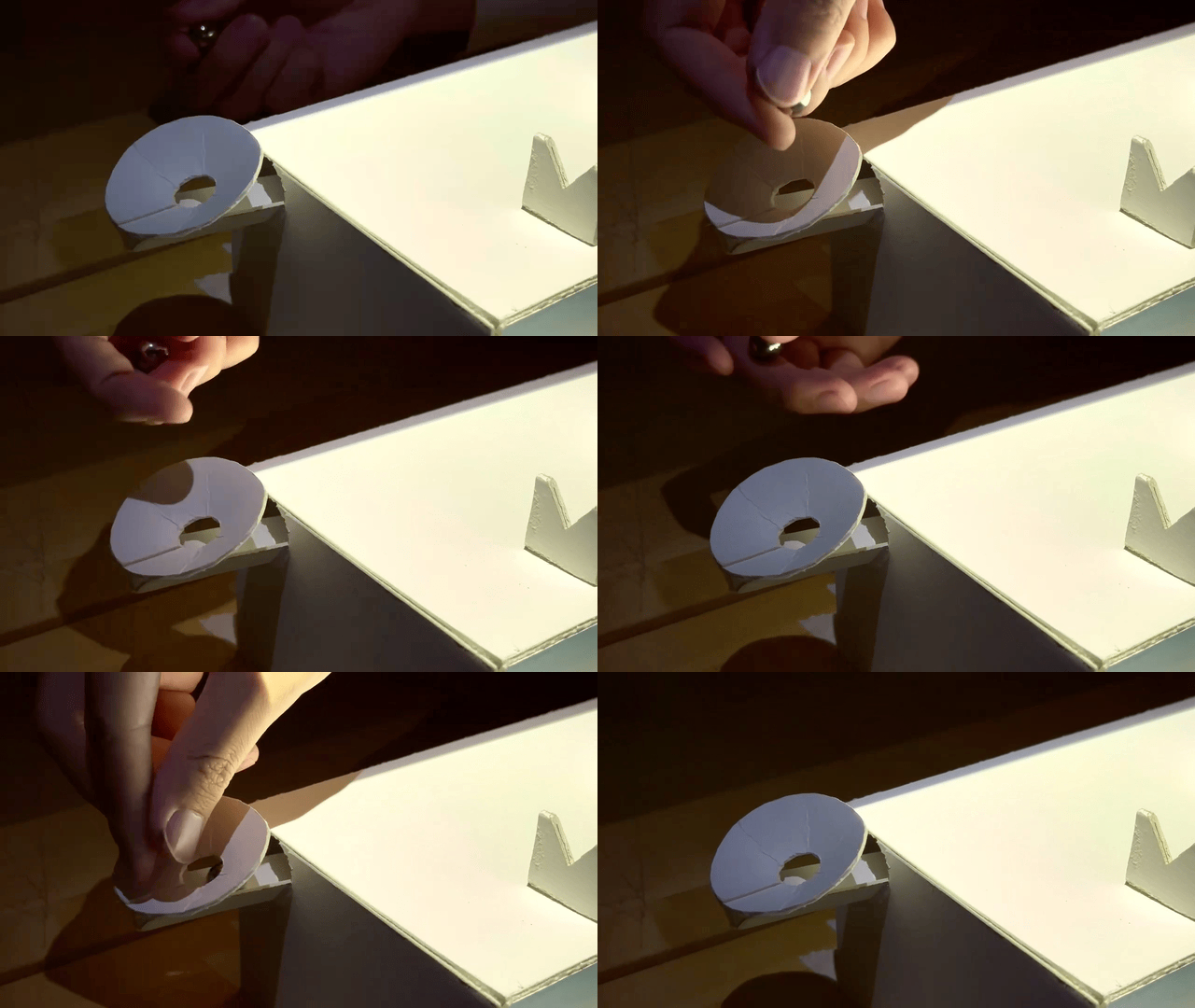
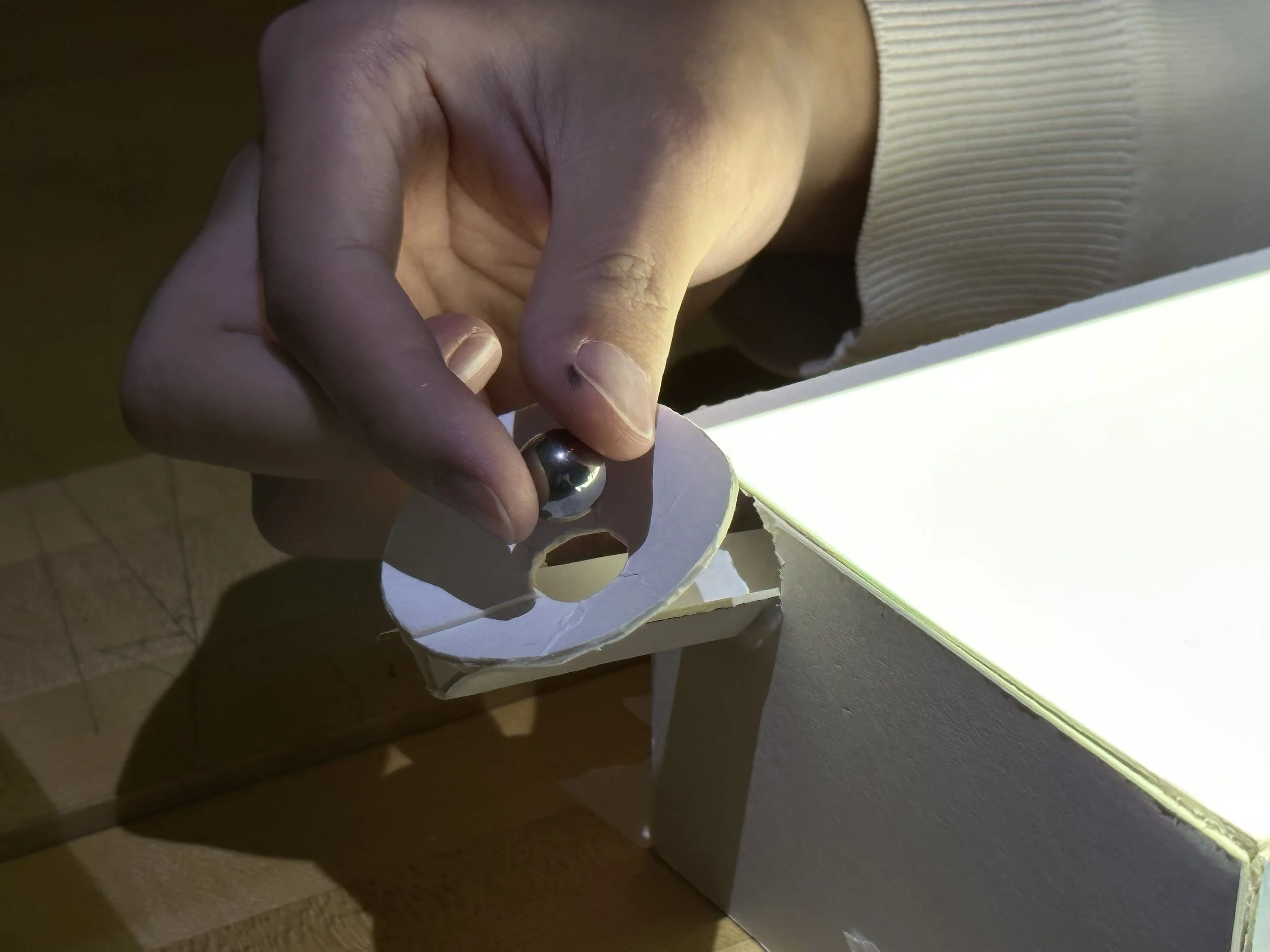
The universality of Music Lab cannot be further emphasized by its circular function. Our team designed the machine's build to allow the reuse of the metal balls. If the user is no longer using the music token, they can grab the metal balls and drop them into the funnel at the back of the device.
The metal balls would be erased, then back into the machine, readily available for its next journey.
The Creative Process
This project aims to provide an engaging and tactile experience for music lovers who seek a more natural, intuitive, and analog way to interact with their digital music players. And everything needed to be designed, constructed and set in place within the course of 2 weeks. This is how we got there.